---
title: Adding Portfolio Company
description: Learn how to add a company, enter investment details, manage shares, and submit your investment in Edda’s portfolio management.
---
[Skip to content](https://help.edda.co/add-portfolio-company#main-content)
Open main navigation
Close main navigation
Advice and answers from the Edda Team
- There are no suggestions because the search field is empty.
1. [Edda Help Center](https://help.edda.co/?hsLang=en)
2. [Portfolio Management](https://help.edda.co/portfolio-management?hsLang=en)
# Adding Portfolio Company
## Once you’ve made an investment in a company, the next step is to record it in your portfolio. Edda makes this process simple and structured, guiding you through everything you need to capture your investment accurately.
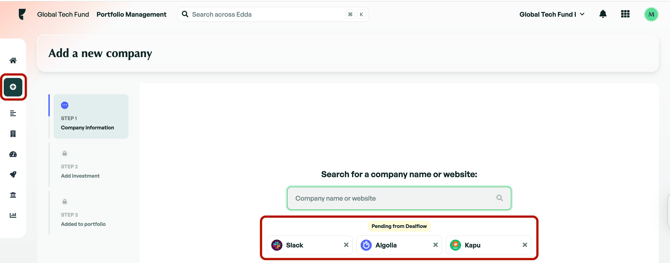
To get started, navigate to the **Add company** page from the left-hand menu.

If you have companies transferred from **Dealflow**, they will be listed below the search bar so you can process them and add the investment information directly.
### **Add a company and filling the company's general information**
In the search bar, you can enter either the **company name** or the **website**. From there, you can choose to:
\- Add the company manually, or
\- Select one of the suggested matches from our data providers.
If company data is available from providers such as Crunchbase, Dealroom, or PitchBook, you can select the desired option to automatically enrich the company’s general information. Otherwise, the fields will be empty for manual entry.
Once the general information is filled in, complete the required fields such as **Industry**, **Investment Type**, **Country**, and **Owner** (your team member managing the investment), then click **Continue** to proceed to the Investment section.
### **Investment Information**
The **Investment Information** section is where you enter all key financial details for your new investment. To begin, select the **instrument**, as the remaining fields will appear based on your selection.
\* The instrument type cannot be changed once the company is fully added, as each instrument has its own workflow and functionalities.
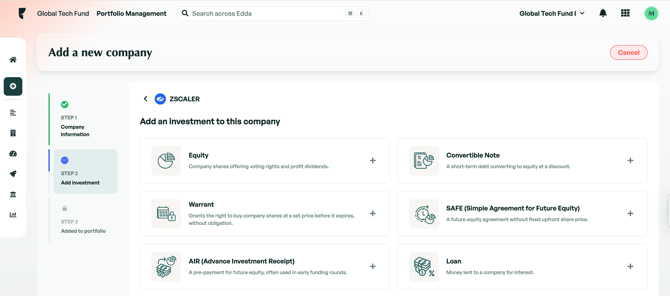
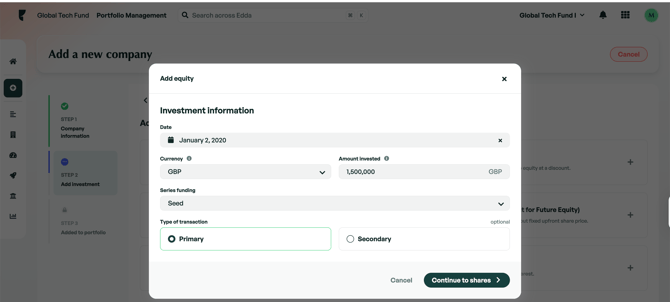
Once you select the **instrument type**, you will be able to enter the initial investment details such as **Date**, **Currency**, **Amount invested**, **Type of transaction**, and **Funding round** (this field can be customized via **Settings → Fields → Next round field**). When ready, click **Continue** to proceed to the Shares section.
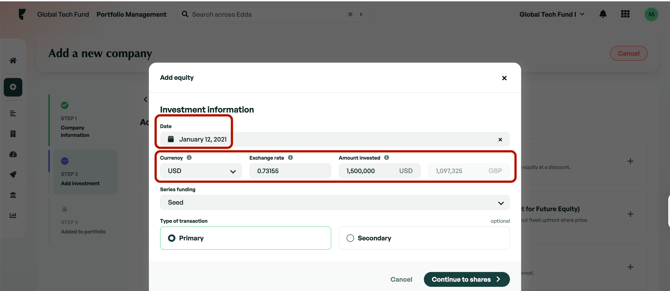
**Exchange Rates: If your investment has been made in a currency different from your default fund currency**, you can select it here. Edda will automatically apply the exchange rate based on the investment date (sourced from the European Central Bank). You can also adjust the exchange rate manually if needed.
### Shares information
You can record and manage multiple share types and classes within a single equity investment. This is available across initial investments, follow-ons, and conversions to equity.
This means you can accurately reflect the real capital structure of a company, including common shares, preferred shares, and various share classes (e.g., Class A, Class B, Series A Preferred, etc.), all within one investment record.
You can skip the **Shares** section by clicking the **Skip** button at the bottom right. However, we recommend completing it to benefit from automated calculations and metrics.
Once you fill in the fields and click **Continue**, some calculated fields will appear in the **right sidebar**. You can hover over the tooltip to view how each value is calculated.
\- If you want to bypass the automated calculations and enter your own numbers, click on the 'Change' icon and make the changes you prefer.
\- If you manually change a field that was auto-calculated or if you make a mistake, you'll notice an alert icon. Click on it, and you'll have the choice to either 'Rerun the calculations' or 'Keep it as it is.
### Review your investment and submit
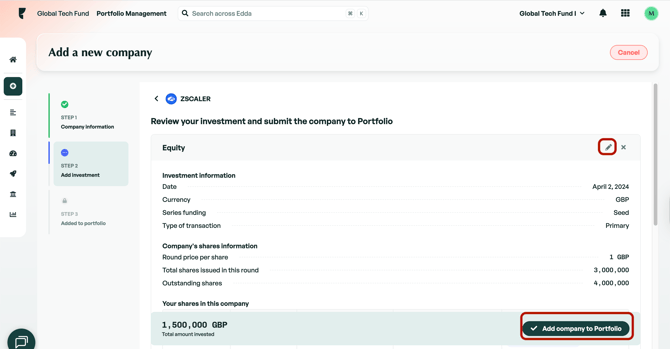
In the final step, you’ll see a summary of your investment, including the data you entered and key calculated fields. You can click the **Edit** button at the top right to make any changes. When ready, click **Add company to portfolio**.
*\* If some the shares data are incomplete, the system will prompt you to confirm before proceeding.*
*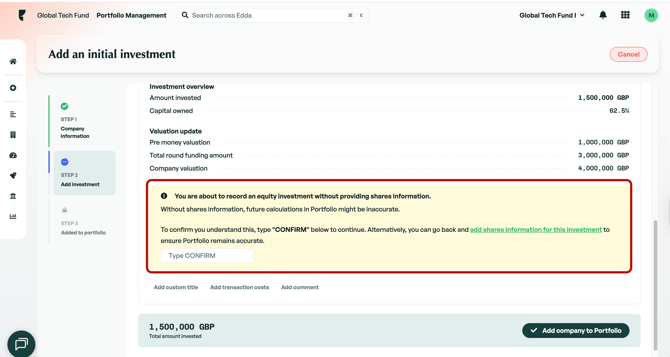*
\* You can also add a **custom title**, **transaction costs**, or **comments** at the bottom of the review page.
If there is anything you need further assistance with, please contact our support team on the platform, we are always happy to assist.
- [Dealflow](https://help.edda.co/dealflow?hsLang=en#main-content)
- [Administration](https://help.edda.co/dealflow?hsLang=en#administration)
- [Company Profiles](https://help.edda.co/dealflow?hsLang=en#company-profiles)
- [How To's](https://help.edda.co/dealflow?hsLang=en#how-tos)
- [Features](https://help.edda.co/dealflow?hsLang=en#features)
- [Portfolio Management](https://help.edda.co/portfolio-management?hsLang=en#main-content)
- [Company Profiles](https://help.edda.co/portfolio-management?hsLang=en#company-profiles)
- [Operations](https://help.edda.co/portfolio-management?hsLang=en#operations)
- [Fund Management](https://help.edda.co/portfolio-management?hsLang=en#fund-management)
- [Graphs and Data Visualization](https://help.edda.co/portfolio-management?hsLang=en#graphs-and-data-visualization)
- [Document Center](https://help.edda.co/document-center?hsLang=en)
- [Integrations](https://help.edda.co/integrations?hsLang=en)
- [Contact](https://help.edda.co/contact?hsLang=en)
- [Administration](https://help.edda.co/administration?hsLang=en)
- [LP's portal](https://help.edda.co/lps-portal?hsLang=en)
- [General](https://help.edda.co/general?hsLang=en)
- [Use cases](https://help.edda.co/use-cases?hsLang=en)
[.png?width=73&height=24&name=image%20(5).png "Chill listening crop-3")](http://edda.co)
Edda Help Center
Copyright © 2026, Edda