What is Edda's Open API?
An API (Application Programming Interface) is a way for external tools, systems, or custom scripts to communicate directly with Edda without going through the user interface. Instead of logging in and performing actions manually, an API allows your systems to read and write data programmatically - automatically and at scale.
Edda’s Open API gives you structured, secure access to your Dealflow and Portfolio data.
Why use the Edda API?
Built for teams who want more than the UI can offer.
| Benefit | What it means for you | |
|---|---|---|
| ⚡ | Automation | Eliminate manual data entry by syncing Edda with your existing tools and workflows automatically. |
| 🔒 | Secure access | All API requests are authenticated using OAuth2 tokens. Your data is protected and access is fully controlled. |
| 🧩 | Flexibility | Access specific endpoints for Workspaces, Companies, Fields, Users, Dashboard metrics, and more. |
Before you begin
To access the Edda API you will need:
- An active Edda account with login credentials (email and password).
- Two-factor authentication (2FA) is optional, but if it is enabled on your account, you will need your 2FA app (such as Google Authenticator or Authy) to generate a one-time password during authentication.
- The base URL for your Edda workspace. This depends on which Edda product you are accessing.
How to access the Edda API
Follow these steps to authenticate and start making API calls.
Step 1 : Open the API documentation page
Log in to your Edda account. Take your workspace base URL and add /openapi at the end and hit the enter key. For example: https://eu-dealflow.edda.co/openapi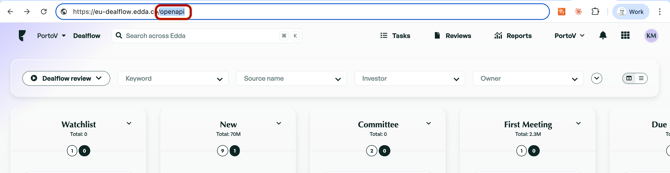
Navigate to this URL in your browser. The Edda API documentation page will load, showing all available endpoints grouped by category on the left-hand side menu.
Step 2 : Authenticate using your credentials
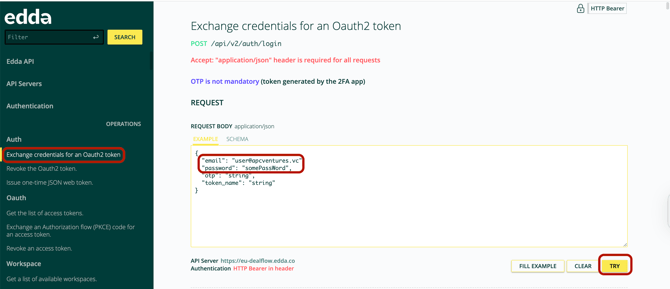
In the left-hand menu, click on Auth, then select Exchange credentials for an OAuth2 token.
This will expand the endpoint and show a request body panel. Click Fill Example to populate the fields, then replace the example values with your own details:
- email — your Edda account email address.
- password — your Edda account password.
- otp — the current one-time password generated by your 2FA app. If you do not have 2FA enabled, this field can be left empty.
- token_name — leave this as the default value ("string"). No changes needed.
Once all fields are filled in, click the Try button.
Step 3 : Copy your access token
If your credentials are correct, the response panel will show:
- Response Status: 200
- A response body containing your token.
Locate the access_token field in the response. Copy only the value between the quotation marks - do not include the quotes themselves. The token will be a long string of characters.
Note: The OTP code expires every 30 seconds. If you receive an authentication error, generate a fresh code from your 2FA app and try again.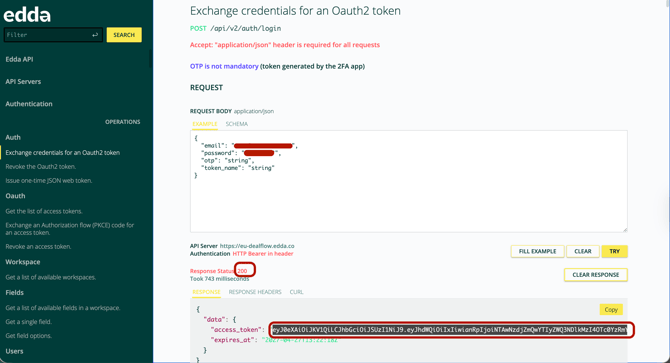
Step 4 : Apply the token to authenticate your session
In the left-hand menu, click on API Servers. At the top of the page you will see the Authentication section.
Paste your copied token into the input field labelled api-token and click the Set button.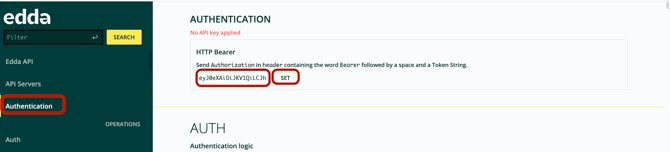
The page will confirm your token has been applied by displaying: 1 API key applied
You are now authenticated. All subsequent API calls made from this session will include your token automatically via HTTP Bearer authentication in the request header.
Video example :
What can you do with the API?
Once authenticated, the left-hand menu gives you access to all available endpoint groups. These include:
| Endpoint Group | What you can access |
|---|---|
| Auth | Exchange credentials, revoke tokens, and issue one-time JSON web tokens. |
| OAuth | Manage access tokens and handle OAuth2 authorisation flows. |
| Workspace | Retrieve a list of available workspaces. |
| Fields | Get available fields and field options in a workspace. |
| Users | Get user details, update workspace users, and manage app access. |
| Dashboard | Return key metrics for Portfolio and Dealflow, latest comments, news, and feature flags. |
| Companies | Fetch company data by ID, copy companies between pipelines, and retrieve field and attachment information. |
Tips & important notes
- The Accept: application/json header is required for all API requests. This is handled automatically when using the API documentation page.
- Tokens are session-based. If you close the browser or the session expires, you will need to re-authenticate and apply a new token.
- If you see a Response Status of 401, your token has expired or is invalid. Repeat Steps 2–4 to generate and apply a fresh token.
- Always copy only the token value between the quotation marks - including the quotes or any extra characters will cause authentication to fail.
- The OTP field is not mandatory if 2FA is not enabled on your account. However, enabling 2FA is strongly recommended for security.
API Logs
On your Settings page, you will find a list of the majority of the API requests made to your account in Edda.%20(1).png?width=670&height=312&name=image%20(1)%20(1).png)
This enables you to easily track which user made which API call at what time. In addition, you can see what the server response was, and the URL of the affected page. Finally, for granular tracking, you can check the IP address of the user who made the call at a glance.
You may also export the list of logs for reporting purposes.
In case you need to review more detail about a specific log, you can click on the downward arrow to the left and expand it. However, please note that not all GET logs will have more detail to show, like the logs that pertain to loading pages within your workspace.%20(1)-1.png?width=670&height=311&name=image%20(1)%20(1)-1.png)
In case you have any additional questions, please don't hesitate to email our Support Team, or contact us via chat.