- Email Privacy Control: You can control privacy settings for emails synced with Edda, for individual emails, or on the integration level. Set privacy preferences upfront when integrating your email and email attachments with Edda for the first time, and edit said privacy settings later on if needed.
- Better email attachments management: Manage your email attachments privacy by displaying them or not within the UI of their original email, or the relevant company in Dealflow.
- Attachment Privacy Alignment: Improved historical behavior where email attachments were always synced as public, regardless of their parent email's privacy setting. This rework prominently displays attachments within the email view, automatically inherits the parent email's privacy setting, and provides an option to copy attachments into the Company Docs section in Dealflow - either email by email or in bulk.
- Integration Flow Stability: We also improved the flow of integrating email addresses with Edda, by making email import performance more transparent, consistent, and stable.
How it works
If you haven't integrated your email with Edda already, then please follow the steps below:
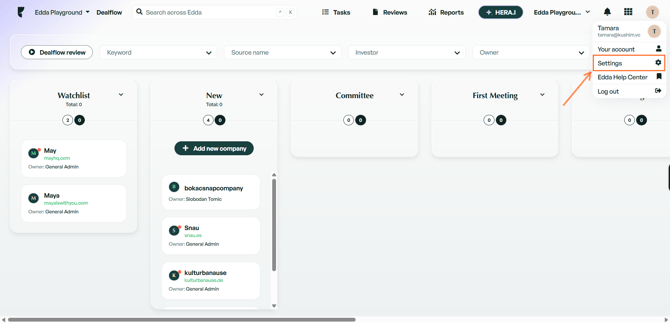
1. Navigate to Settings → Integrations.
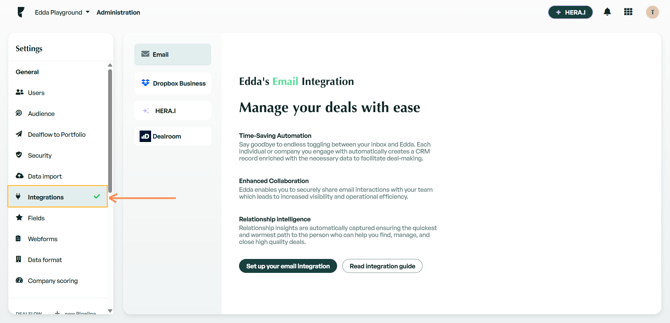
2. Click the 'Set up your email integration' button. A new flow will start asking you to choose wether you wish to import your emails and email attachments as Private or Public.
If you choose Public, you'll be presented with one more new option, allowing you to automatically copy email attachments to Company Documents in Dealflow, for each company that is relevant to your emails.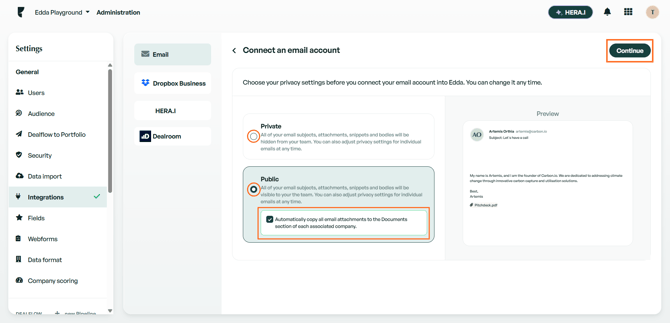
Important: By 'relevant to your emails' we are referring to companies that have a website with a matching domain to the domain of your email integration. Those will be the companies that will have emails from your integration presented in the 'Emails' tab in Dealflow.
3. Click 'Continue' once you're happy with your choice, but please keep in mind that Private emails will only be visible to you, the owner of the integration. No other user will be able to see their body or attachments.
With Public, all other users will be able to preview your emails and attachments, as well as download attachments from your emails.
4. A popup window will then ask you to select your email provider.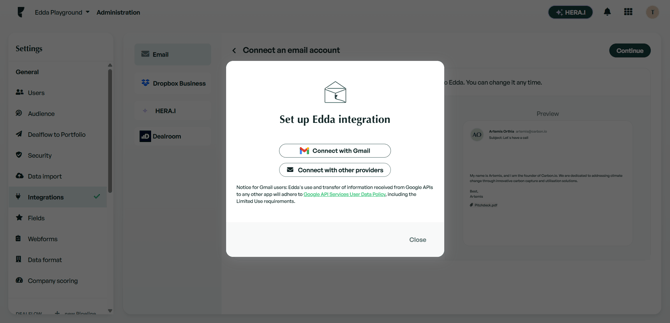
5. Next, our provider Nylas will ask you to authenticate the connection. In this example we're using a Gmail address, so we'll authenticate by clicking 'Continue with Google'.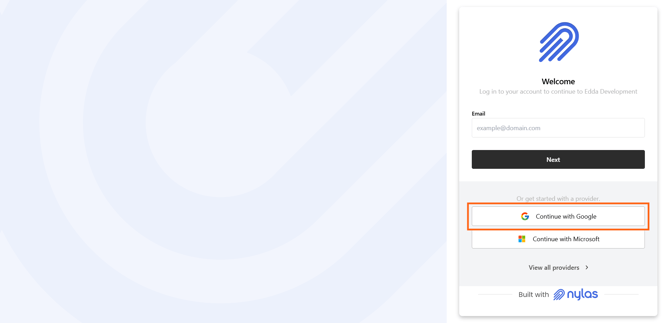
6. Then, you will be asked to log into Gmail with your credentials, or if you're already logged in, to select the email address that you wish to integrate.
7. Once selected, please click 'Continue' and Nylas will ask you to grant it access to enable the connection. Please allow all 3 points of access for the integration to succeed.
8. You will then be redirected back to Edda, where a success message will pop up on your screen. Click 'Close' to find your email integrated, and the import will start automatically.
Please just keep in mind that the email import may take some time, depending on the amount of emails and attachments there are.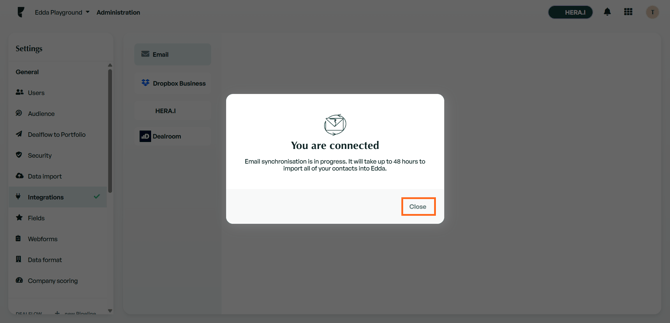
9. Please refresh the page to check out the progress of your email import. If it's done, the icon next to your email integration will be a green checkmark, and you'll have a note quoting how many emails have been imported.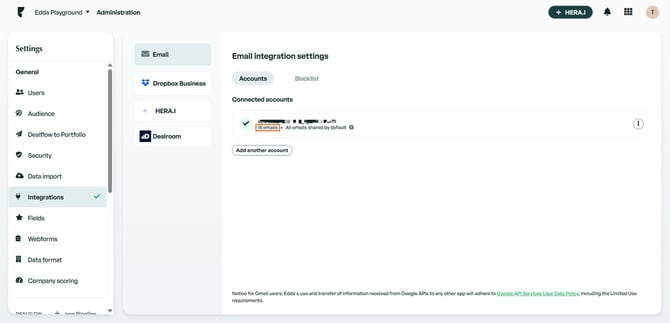
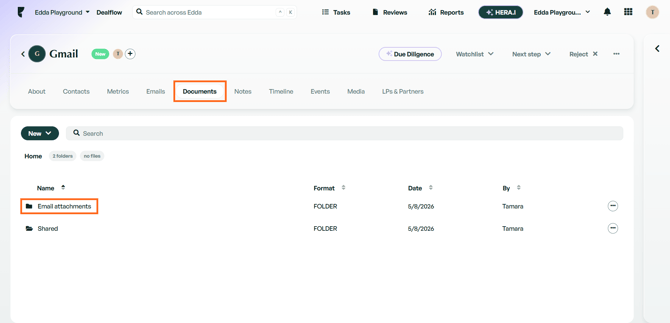
10. In Dealflow, you can now find a company with a matching domain to your email integration, and on the 'Emails' tab you'll be able to view all of the imported emails.
On the 'Documents' tab of the same company, you will find a new folder titled 'Email attachments', where your email attachments are saved as company documents..png?width=670&height=324&name=ScreenShot%20Tool%20-20260508171539%20(1).png)
If you've already integrated your email with Edda, then fear not, the new feature will be automatically enabled on your account and applied to your emails and attachments!
However, please note that this update will make all of your emails and attachments private by default.
Changing email privacy settings
You may switch your emails from private to public, and vice versa, whenever you wish - either for the entire integration, or you can change individual email settings.
To change your email integration privacy, simply navigate to Settings → Integrations and click on the menu on the right:.png?width=670&height=324&name=image%20(1).png)
You'll find the 'Edit privacy settings' option available in the menu.
To change a single email's privacy setting, simply locate the email in your Dealflow or your Contacts, and click on 'Make private/public' on the right-hand side:-1.png?width=670&height=324&name=image%20(1)-1.png)
Linking and unlinking emails
Besides making emails public or private, you may also link or unlink them from companies. This comes in handy when an email that you don't necessarily deem relevant has been linked to one of your companies, or you simply don't want it visible in your workspace at all.
To unlink an email from a company in Dealflow, simply locate the email in Company → Emails and click the 'Unlink email' button as shown below:.png?width=670&height=324&name=image%20(3).png)
Similarly, in Contacts, you can unlink an email by going to Contacts → Contact Profile → Emails and clicking the 'Unlink email' button:.png?width=670&height=324&name=image%20(7).png)
However, in Contacts, if an email is linked to more than one company, you will then be asked to select which companies you wish you unlink it from.
Important: Please remember that, if an email was previously linked with a company, but then manually unlinked from the company, it cannot be linked to any company again.
Copy email attachments to company documents
There are a couple of ways in which you can create copies of your email attachments and store them in company documents. The first would be during email integration, as mentioned above under 'How it works'.
There is a second option you can use if you didn't select the first option while integrating your email. In Dealflow, if you navigate to the 'Emails' tab, and locate an email with the relevant attachment, you will find an option called 'Copy all attachments to company documents'. Simply click this button:.png?width=670&height=324&name=image%20(8).png)
If you have any follow-up questions on this, or any other topic, please don't hesitate to reach out to us via chat!