Forward to Edda eliminates this problem. Every pipeline, fund, and company in Edda gets its own dedicated email address. Forward a pitch, an intro, or an inbound email to that address, and Edda does the rest: it creates the company, extracts contacts, detects the deck, enriches the data, and sends you a link to the finished deal - all within seconds.
No plugin. No setup. No behaviour change. Just one forward.
Forward to Edda - Basic Features (Non-HERA.I Users)
- Forward emails to dedicated company email addresses to store them in company profiles, without switching tabs, or needing an email integration.
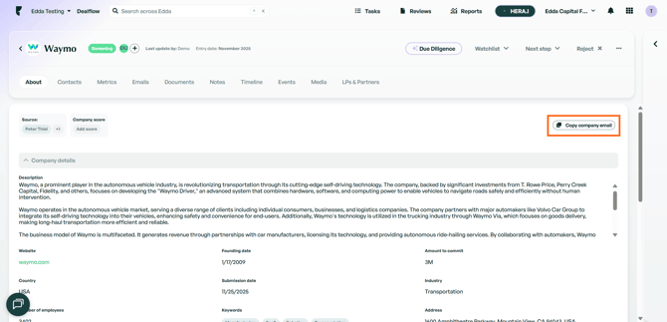
HERA.I Forward to Edda
- You can use emails to create new companies in Dealflow, or update existing companies with new data.
- You can edit the domains of pipeline and company email addresses to customize them to your branding.
- You can add new contacts, or update existing ones, by sending emails to pipelines or companies.
Edda provides dedicated inbound email addresses at two levels:
Pipeline — HERA.I Feature
Each pipeline or fund gets its own address (e.g. pipeline1-acmecorp@edda.co) When a user forwards an email here, AI processes the content: it identifies the company, creates or matches the deal, and pulls in attachments. Then, your data provider (Crunchbase, Dealroom, or Pitchbook) takes over and autofills company data. This is the primary entry point for new companies in Dealflow.
Company address — for Email Sync (Basic Feature)
Every company in Edda gets its own address (e.g. airbnb-acmecorp@edda.com). Users can CC or forward emails here to sync them directly to that company's email section — no AI processing, no data extraction. This is the option for teams who want to keep a communication trail without sending content through AI.
Prerequisites
- Non-Edda users can't send emails to your workspace.
- You need to be logged in as an Administrator, Moderator, or Investor to access the feature.
- The size of the email sent cannot exceed 25MB in total, including the files attached to it.
HERA.I Forward to Edda: How it works
You can now use your emails to:
| Action | Credits per Action |
| Create new company | 30 |
| Update company information | 5 |
| Create new contact | 5 |
| Update contact information | 5 |
Or, you can simply store company emails without making any changes for free!
Setup
This feature is active for all Edda accounts by default. You can use it whenever you're ready!
Please follow these steps to locate the setup and configure it:
1. Navigate to Settings → Forward to Edda, or follow the prompts on the new popup.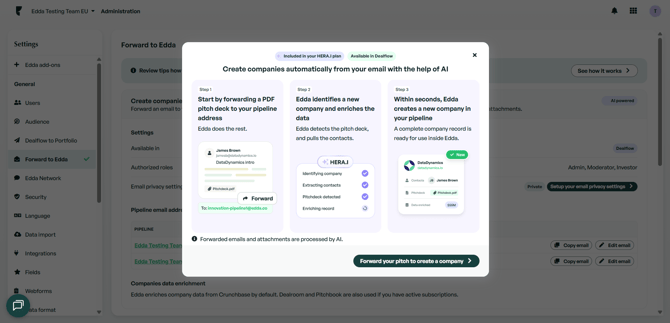
2. If you don't have Hera.I activated, you'll be presented with the following page. Here, you can activate HERA by clicking 'Learn more about AI in Edda'.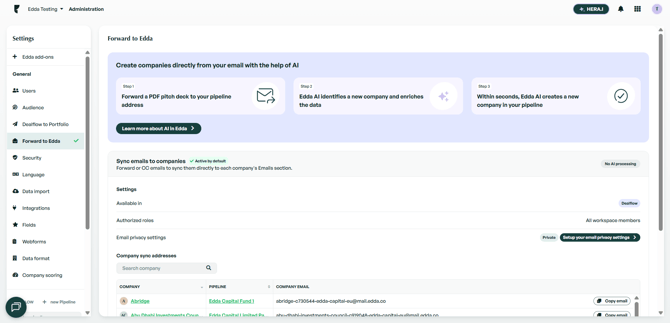
3. If you have HERA activated, you'll be presented with the following page. On this page, you can change the default privacy setting of your emails by clicking 'Set up your email privacy settings'. Of course, you can change it again later on, or even change individual email privacy on a case-by-case basis.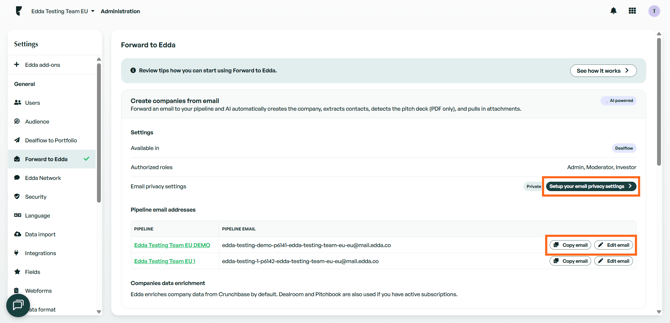
5. You can also click 'Copy email' next to any email address you see on this page in order to send an email to that address using your native email inbox.
6. Finally, on the same page, you can click 'Edit email' (if you have HERA active) and customize the default email address to your liking.
To create a new company from a pitch deck, please follow these steps:
1. Navigate to your Dealflow in Edda, and open the pipeline menu dropdown. You'll find a new button there, enabling you to copy the pipeline email address.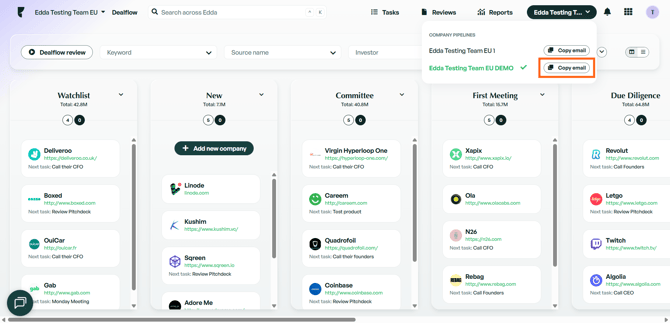
2. Draft a new email and attach a pitch deck to it, or use an existing email that you'd like to forward. Paste the copied email address to your drafted email recipient field. Then, send the email.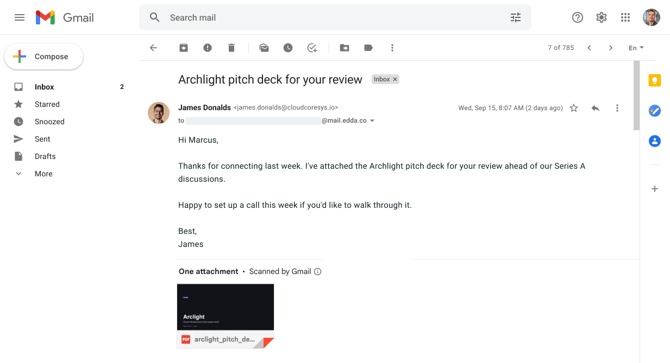
4. Back in Dealflow, you'll find a new company profile loading in your pipeline.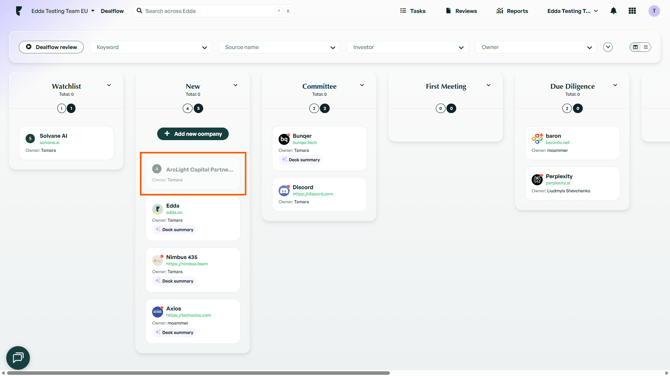
5. Once ready, you'll be notified by Edda via email.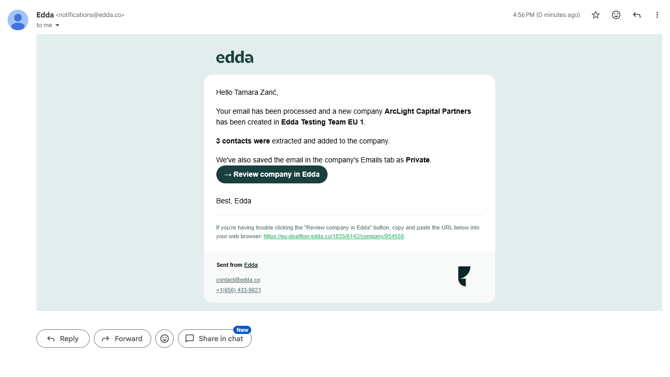
6. Simply click the 'Review company in Edda' button, and you'll find the company profile completed and automatically enriched. If there's a website URL in the deck and the company exists on Crunchbase, Dealroom, or Pitchbook, the company profile will also be autofilled with that information.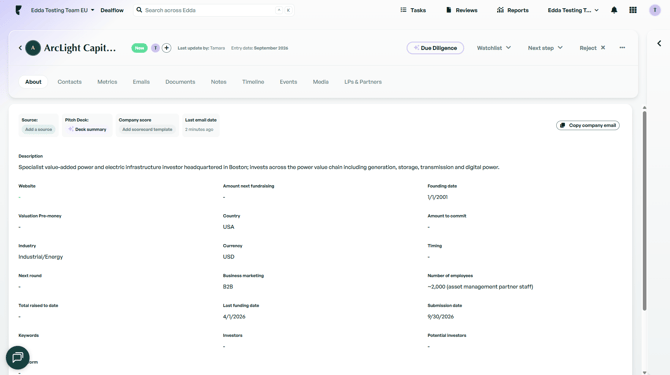
You can create a company using the same steps even without a pitch deck! Simply send an email containing the company name and website.
Finally, to make sure that emails relevant to the company end up in company emails in Dealflow, but without creating new companies, simply CC the company email address when forwarding the email and you'll find it in Dealflow.
Now, to create new contacts from an email, please follow these 3 steps:
1. Copy the company's email address from Dealflow and use it as the recipient (or CC).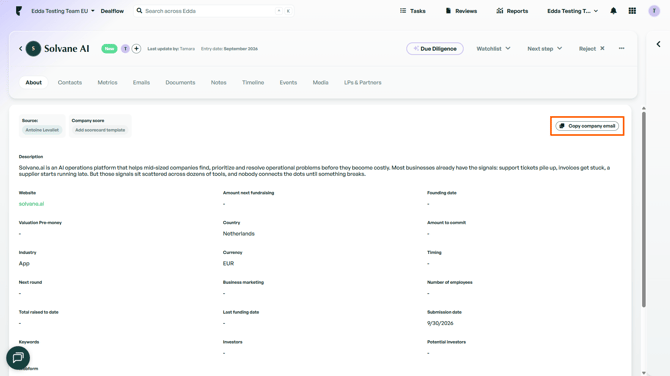
2. Draft an email that contains the relevant contacts' email addresses, names, or both. You can add their roles in the company too, if relevant.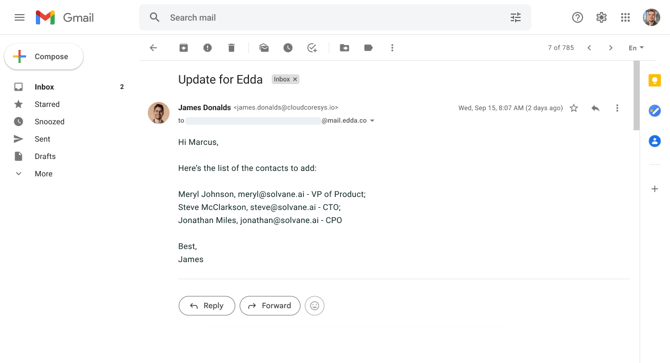
3. Send the email and go back to the company in Dealflow. It may take a moment, but shortly you will find the email imported and the contacts added.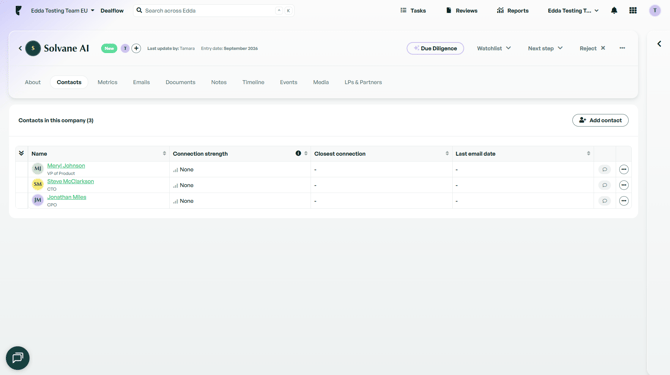
*Notice: If a company already exists, and a user sends an email to Edda to create the same company (via pitch deck, or just an email with the same company name and domain), then no new company will be created so as not to add a duplicate.
The existing company profile will be updated with new information if provided, and if not your email will simply be stored in the company profile.
We hope this guide was helpful, but please don't hesitate to contact us via chat or email in case you need any further assistance.