Before You Start
-
Each column in the template includes a detailed description at the top to help you fill in your data. Please follow these instructions carefully.
-
Date formats must be consistent. In cases where no date is provided, the import date will be used instead.
-
Mandatory fields are marked with an asterisk (*). We strongly encourage you to enter as much information as possible to get the most out of the platform.
-
Delete all EXAMPLE rows before sending your template back to the Edda team.
-
Keep data clean and consistent. Avoid entering the same value in different formats across rows — for example, do not mix "UK", "Britain" and "England" for the same country. This prevents issues with filters, reports and other features.
-
If you have multiple funds, rename each worksheet tab to match the corresponding fund name.
-
You will have 5 business days to review and validate all imported data once it has been loaded into Edda.
Investments information tab
This is the main tab of the template. Each row represents a single investment transaction. The tab is divided into two sections: company information (columns A–K) , investment information (columns L to AT), and custom fields (columns AU onwards)
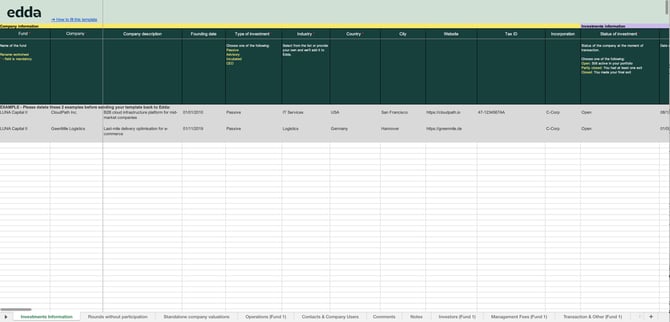
Supported instrument types:
- Equity — fill in the share-specific columns (Share name, Share class, Price per share, Liquidation preference, Voting rights, Seniority, etc.). Multiple share types: if a single investment includes more than one share type (e.g. Class A Preferred and Common), add one row per share type. Fill in all company and transaction columns identically — only the share-specific columns should differ. S
- Convertible Note, SAFE, AIR — fill in Valuation Cap, Discount, and Interest rate as applicable
- Warrant — fill in Number of warrants, Exercise price, Warrant premium, and Maturity date
- Loan — fill in Interest rate and Maturity date
Supported actions: Investment, Exit, Conversion to equity, Dividends.
Custom Fields
You can add custom field columns at the end of the Investments Information tab, after the designated custom columns marker. Each column header must follow this format:
Field name, Type of Field, Optional or Mandatory, (Already created on Edda) or (New field)
Example: ESG Rating, Text (Type of Field), Optional (Custom field)
Available field types: Amount, Date, Link, List, Short-text, Long-text, Tag.
Rounds without participation
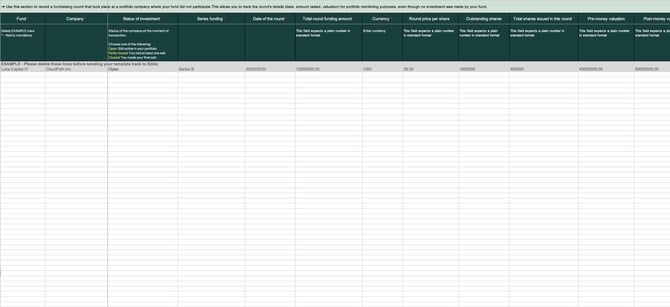
Use this tab to record fundraising rounds at portfolio companies in which your fund did not participate. This allows you to track dilution and valuation changes over time. If a company raised multiple rounds without your participation, add one row per round.
Standalone Company Valuations
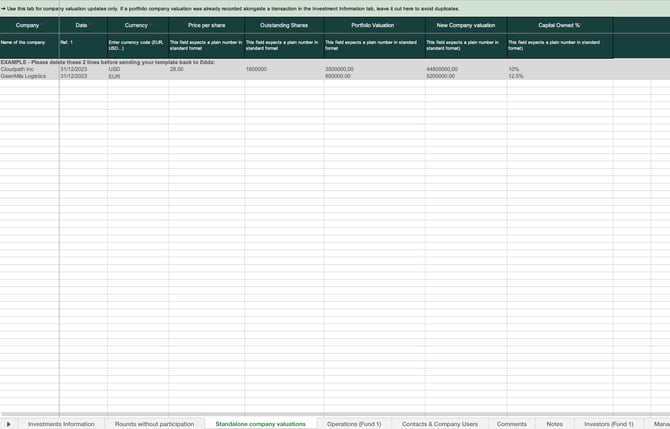
Use this tab to record valuation updates that are not tied to a specific investment transaction. If a valuation has already been recorded in the Investments Information tab, do not repeat it here to avoid duplicates.
Contacts & Company Users
Use this tab to add contacts to portfolio company profiles. Contacts marked as Company Users will be given access to their company's profile in Edda.
Comments
Use this tab to import comments associated with portfolio companies. If a comment is not associated with a specific user, it will be assigned to the company's owner by default.
Notes
Use this tab to import notes associated with portfolio companies. Each row requires a title and content. If a note is not associated with a specific user, it will be assigned to the company's owner by default.
Investors
Use this tab to record your fund's LP and GP investors. Each row represents one investor. You can record investor type, amount of shares, commitments, capital owned percentage, type of shares (e.g. Class A Preferred, Class B Common, GP Interest), bank account, and ID.
Operations
Use this tab to record capital movements between the fund and its investors. Each row is one transaction — either a Contribution (capital call from an investor) or a Distribution (payment from the fund to an investor).
Management Fees
Use this tab to record management fees charged by the fund. The Fees column accepts the following values: Transaction fees, Underwriting fees, Monitoring fees, Directors fees, Other fees.
Transaction & Other
Use this tab to record transaction-related costs and other fund expenses. The Fees column accepts the following values: Transaction fees, Underwriting fees, Monitoring fees, Directors fees, Other fees.
Fund Operating Expenses
Use this tab to record fund-level operating expenses. The Fees column accepts the following values: Audit fees, Tax, Fund formation costs, Aborted deal costs, Other expenses.
Tasks
Use this tab to add tasks to portfolio company profiles. Each row is one task, assigned to a team member with a due date and completion status.
Crunchbase Seeding
Use this tab to indicate whether you would like Edda to auto-populate company data from Crunchbase. You can select which fields to pull automatically (description, website, country, industry, logo, etc.) and whether to apply this to all companies in the import.
How to Import SPVs
Edda does not natively support SPVs, but you can track them using the following workaround in the Investments Information tab.
Fund and company setup:
- In the Fund Name column, enter the SPV name (e.g. SPV 1 2024).
- In the Custom title column, enter "SPV" to identify it as a special purpose vehicle.
- In the Company name column, enter the investor name — this should be consistent across all rows for the same SPV.
Investor rows:
- Create one Initial Investment row for the first investor.
- Add all subsequent investors as Follow-on Investments, ideally dated on the same day.
- In the Amount column, record each investor's individual contribution amount.
Once imported, you can manage valuations, track performance, and view the cap table through the Investors tab and Fund Overview in Edda.