---
title: 📊 Dealflow Company Metrics
description: Metrics provide the ability to track potential investments and where they are performing.
---
[Skip to content](https://help.edda.co/dealflow-company-metrics#main-content)
Open main navigation
Close main navigation
Advice and answers from the Edda Team
- There are no suggestions because the search field is empty.
1. [Edda Help Center](https://help.edda.co/?hsLang=en)
2. [Dealflow](https://help.edda.co/dealflow?hsLang=en)
# 📊 Dealflow Company Metrics
## Metrics provide the ability to track potential investments and where they are performing.
At Edda, we understand the critical role that metrics play in your decision-making process. That's why we've developed a solution that empowers you to create and track your own metrics, tailored to your unique needs and goals.
### **Configuration**
| User role | Create | Update | Edit | View |
| --- | --- | --- | --- | --- |
| **Administrator** | Yes | Yes | Yes | Yes |
| **Moderator** | Yes | Yes | Yes | Yes |
| **Investor** | Yes | Yes | Yes | Yes |
| **Viewer (**with permission) | No | No | No | Yes |
| **Company User (**with permission) | No | Yes | No | Yes |
### **Managing Metrics**
#### **Creating a New Metric**
You can manage metrics directly from any Dealflow company. Follow these steps to create one:
1. Navigate to the desired Dealflow company.
2. Select the **Metrics** tab and choose the desired temporality (Yearly, Quarterly, Monthly, Weekly, or One-off).
3. Click **Add Metric**.
4. Select **Create New Metric**.
5. Enter the name, choose the metric format (Percent, Quantitative Value, or Amount in fund currency).
6. (Optional) Add a description.
7. Select **Activate this metric for all companies** if you want it applied across all portfolio companies.
8. Click **Create New Metric** when you’re ready.
#### **Recommended Metrics**
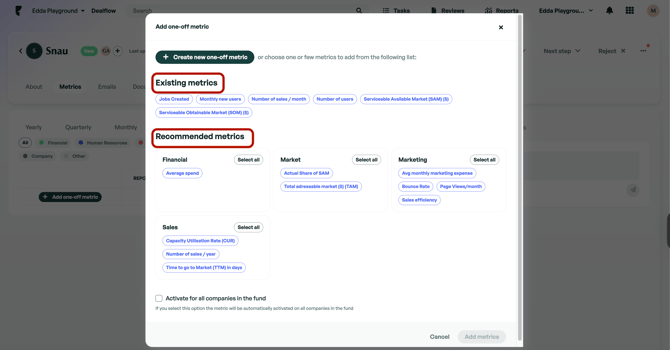
When you open the metric creation modal for the first time, you’ll see the **Recommended Metrics** section. This allows you to select default metrics prepared by Edda to quickly add them to your company.
- You can select one or multiple recommended metrics.
- Use the toggle at the bottom to **Activate for all companies** if desired.
- When ready, click **Add Metrics** in the bottom-right corner.
#### **Existing Metrics**
Once you’ve created or added default metrics, when opening the create metrics modal on any company, you will also see the **Existing Metrics** section. Here, you can select previously created metrics to activate them for other companies easily.
### **Table Settings**
Use **Table Settings** to customize how your metrics table is displayed:
- Select the toggle button next to *“**Apply custom settings for this company**”* if you want the changes to apply only to this company.
- Choose the starting and ending years.
- Enable forecast columns if desired. **Once enabled, forecast columns will be displayed across all columns for the selected temporality. It is not possible to display some forecast columns and not others.**
- For Quarterly or Monthly metrics, you can add a **Yearly** column that sums the values automatically.
- Click the eye icon to show or hide a specific time period section (Yearly, Quarterly, Monthly, or Weekly).
- Choose to apply settings to either the current company or all companies using the toggle at the top.
- Decide how to display weekly headers (e.g., **Week 1, Week 2** vs. **specific date ranges**).
### **Filling or Updating Metrics**
The metrics are displayed in a table for easy updates.
- Double-click any cell to enter values manually.
- Use Excel support: you can click any cell **and paste** values directly from Excel.
- Each forecasted cell automatically calculates and displays the difference between the reported and forecasted metrics as a percentage.
### **Undo / Redo Actions**
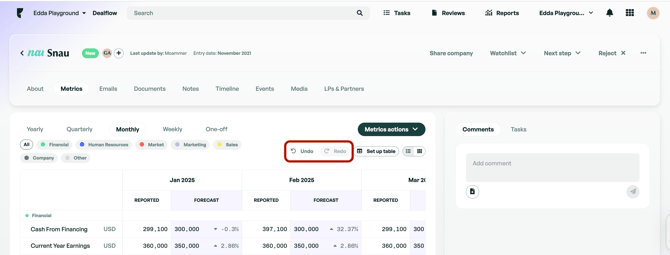
Use the **Undo** and **Redo** buttons to revert or reapply recent changes, just like in Excel. Keyboard shortcuts are also supported.
Please note: Once you refresh or close the page, undo/redo history will be cleared as in Excel.
### **Organizing Metrics**
Drag and drop metrics into your preferred order directly within the table.
### **Category Filters**
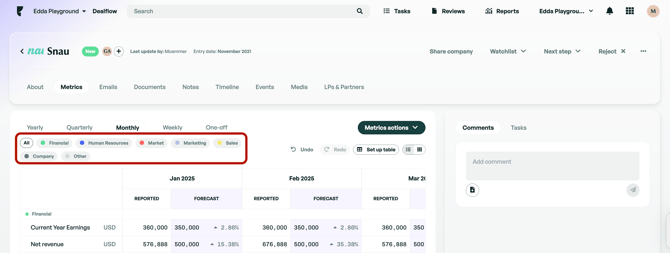
Use built-in category filters to quickly sort and organize metrics.
### **Editing Metrics**
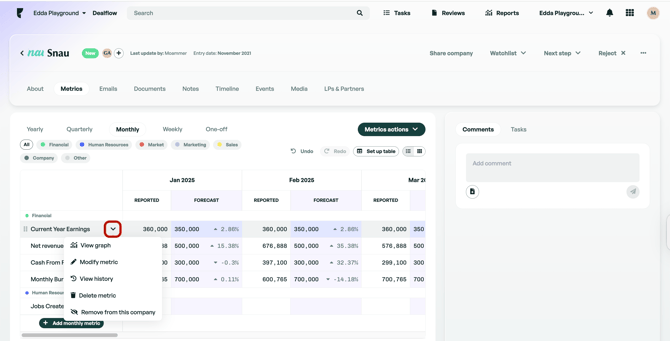
- Click the arrow icon next to any metric to:
- Display it in a graph
- Modify its name, category, or description (format cannot be changed)
- View the metric’s history
- **Delete** the metric (this removes the metric and its data from all companies)
- **Remove** the metric (hides it from the list without deleting the data)
### **Cards View**
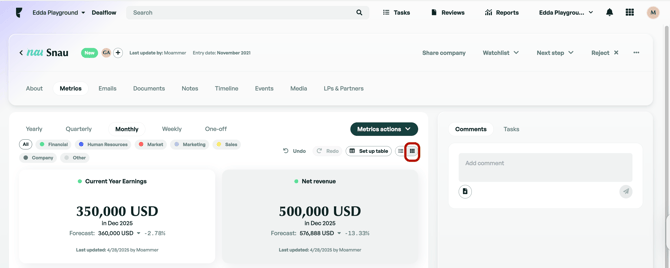
- You can switch to a **Card View** for your metrics.
- Each card displays:
- The last value added
- The period
- When the metric was last updated and by whom
- Click on a card to view its data plotted on a graph.
If there is anything you need further assistance with, please contact our support team on the platform, we are always happy to assist.
- [Dealflow](https://help.edda.co/dealflow?hsLang=en#main-content)
- [Administration](https://help.edda.co/dealflow?hsLang=en#administration)
- [Company Profiles](https://help.edda.co/dealflow?hsLang=en#company-profiles)
- [How To's](https://help.edda.co/dealflow?hsLang=en#how-tos)
- [Features](https://help.edda.co/dealflow?hsLang=en#features)
- [Portfolio Management](https://help.edda.co/portfolio-management?hsLang=en#main-content)
- [Company Profiles](https://help.edda.co/portfolio-management?hsLang=en#company-profiles)
- [Operations](https://help.edda.co/portfolio-management?hsLang=en#operations)
- [Fund Management](https://help.edda.co/portfolio-management?hsLang=en#fund-management)
- [Graphs and Data Visualization](https://help.edda.co/portfolio-management?hsLang=en#graphs-and-data-visualization)
- [Document Center](https://help.edda.co/document-center?hsLang=en)
- [Integrations](https://help.edda.co/integrations?hsLang=en)
- [Contact](https://help.edda.co/contact?hsLang=en)
- [Administration](https://help.edda.co/administration?hsLang=en)
- [LP's portal](https://help.edda.co/lps-portal?hsLang=en)
- [General](https://help.edda.co/general?hsLang=en)
- [Use cases](https://help.edda.co/use-cases?hsLang=en)
[](http://edda.co)
Edda Help Center
Copyright © 2026, Edda