The top section provides quick access to key actions. You can check the dedicated articles for the features below to learn more:
- Request metrics update: Send metric update requests to company users or team members.
- Add new company: Create and add a new company to your portfolio.
- Export: Exports the entire list of companies.
- Filters – Apply filters to sort companies. You can add or remove filters from the Filters section in Settings.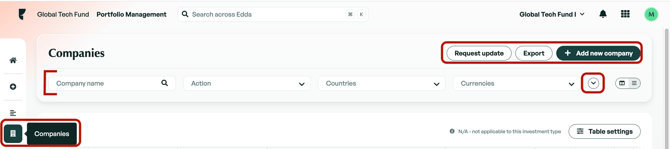
Company list vs. Card view: You can switch between the list and card views using the toggle icons next to the filters.
Table Settings
You can use the table settings to exclude columns (Fields) from the Companies view. Once you update the settings and click Save, the column configuration will be saved for your user only. Other users in your team can customize the table based on their own preferences.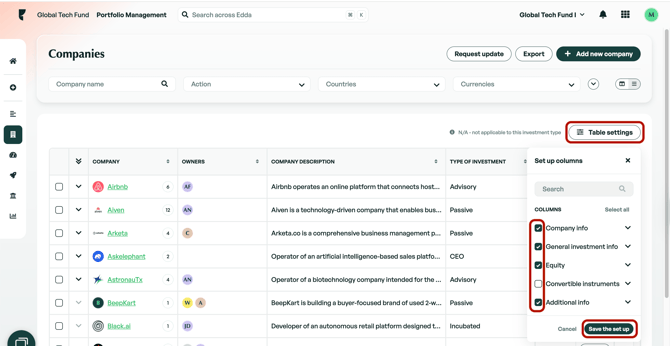
Companies list
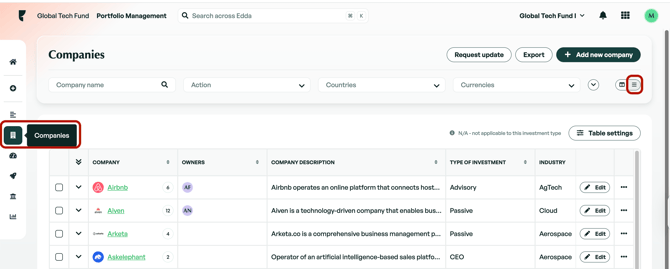
The companies' list is the core feature on this page. It gives you an overview of all your operations, and it also provides you with the ability to update and delete operations within your portfolio. The companies page can be accessed via the 'companies' tab on the left-side menu.
Sorting
By default, the companies' list is sorted alphabetically by company name, with each company displayed in a single row.
We have also added sorting features that let you sort by ascending/descending values of the chosen column.
Expand to view all operations and multiple shares
- By default, only the latest operation is displayed. Click the expand icon next to a company name to view all its operations, each shown in a separate row.
- For companies with multiple shares, click the expand icon next to the operation to view the breakdown.
Editing Data
You can easily update and manage your data directly from the companies list, allowing for quick and efficient changes without leaving the page.
- General fields can be edited by double-clicking on a cell. After making changes, press Enter to confirm.
- Investment data can be updated by clicking the Edit button, which opens the investment modal.
There are instances of what may seem like duplicate columns e.g. Share price & Share price($). These are unique columns that distinguish between different currency values which may have been used within an investment. The first column will be the currency of the investment with the column containing the currency symbol representing the amount converted into your fund's default currency.
* Some informational columns, such as 'Action', cannot be edited, and certain columns like 'Instrument' do not allow changing the instrument type, as each instrument is linked to a separate workflow.
Deleting Operations
You can delete any company or specific operation that are no longer necessary or created in error. Deleting is very simple and involves selecting the check box of the company or the operation and clicking delete. You will then receive a notification that the deletion was successful.
Alternatively, you can click the three-dot menu on the right of a company or operation and select Delete.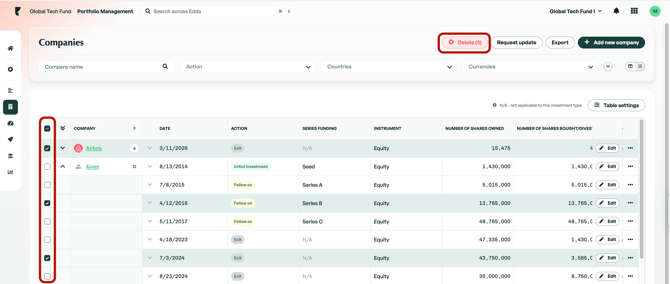
* If you delete a company that only has an initial investment, you can choose to delete either the investment information or the entire company. If you delete only the initial investment or all active investment, the company will be removed from the companies list but will still appear in the Cards view and Portfolio value. You can add the investment information again at any time from the company profile - Investment Information section.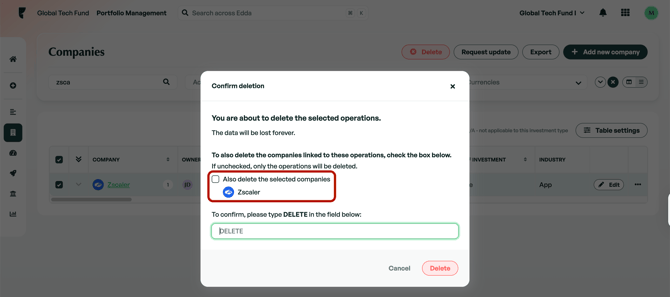
If there is anything you need further assistance with, please contact our support team on the platform, we are always happy to assist.